
In the first blog, I focused on how AI Agent Studio connects to the wider enterprise landscape, but once those connections are in place, the next question is how and when agents are actually set in motion. I touched briefly on triggers in an earlier post, but the depth available here really deserves a closer look. In AI Agent Studio, a published Workflow Agent can be kicked off in three distinct ways: via a webhook, through email, or on a schedule. Each option supports very different use cases, from event‑driven automation to time‑based controls, and understanding how to use them effectively is key to building agents that fit naturally into day‑to‑day operations rather than feeling bolted on.
The webhook trigger is the mechanism behind the invokeAsync API call discussed earlier, but it also supports a more flexible and powerful pattern. When configuring a webhook trigger, you can define named input variables, which are passed into the REST call as part of the parameters object. Within the workflow, those values are exposed via $context.$triggers.REST.$input.<InputName>, allowing you to build parameterised workflows that adapt their behaviour based on what the calling system provides. This is particularly useful when you want a single workflow to handle multiple variations of a process, with the external system supplying the context that determines how the agent responds.
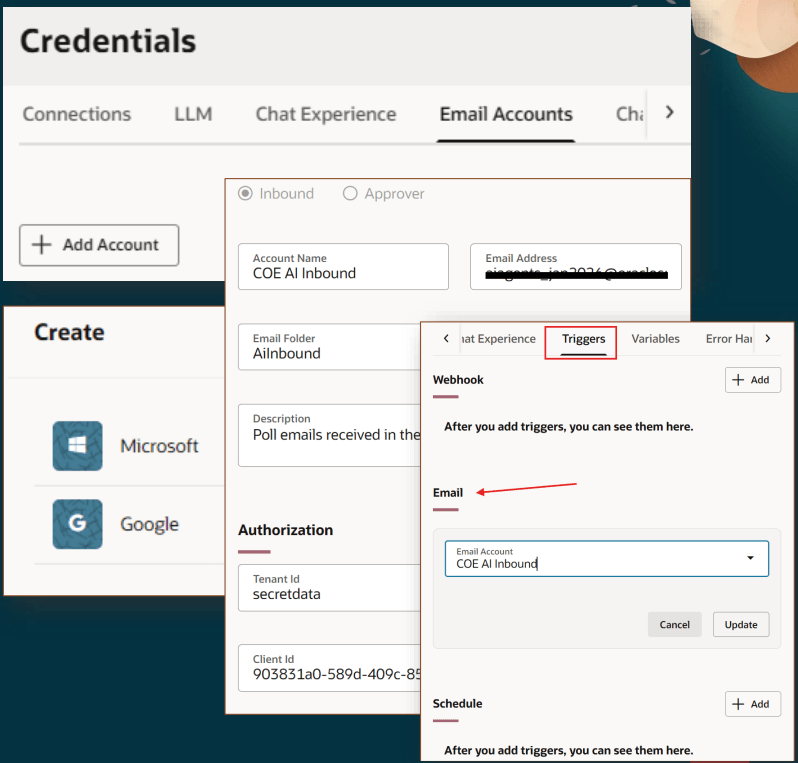
The email trigger is one I find particularly practical. You configure a Google or Microsoft email account under Credentials, set the account type to Inbound, and from that point on, any new email arriving in the inbox automatically kicks off the workflow. The email body, sender address, subject, headers and even attachment content are all exposed as context variables, such as $context.$triggers.EMAIL.$input.content, $context.$triggers.EMAIL.$input.fromAddress, and processed attachment text via $context.$triggers.EMAIL.$input.attachments[0].context. This makes document ingestion workflows genuinely straightforward to build. For example, a supplier can email a quote to a monitored inbox, the email trigger fires, a Document Processor node extracts the line items, and the workflow creates a purchase requisition in Fusion, with no human involvement unless an exception is identified.
The schedule trigger supports two distinct patterns, depending on how you want your workflow to run. Interval scheduling fires on a repeating, time‑based cadence, configured in seconds, minutes, hours or days from a defined anchor point, while recurrence scheduling uses more familiar calendar‑based patterns, either one‑off or repeating, such as weekly on specific days. One practical point to be aware of is that the user creating a scheduled workflow must be assigned the FAI Batch Job Manager Duty role (ORA_DR_FAI_BATCH_JOB_MANAGER_DUTY) for the scheduling job to be created successfully. It is an easy detail to miss during initial setup, but one that is worth flagging early to your security or roles team to avoid unnecessary delays.
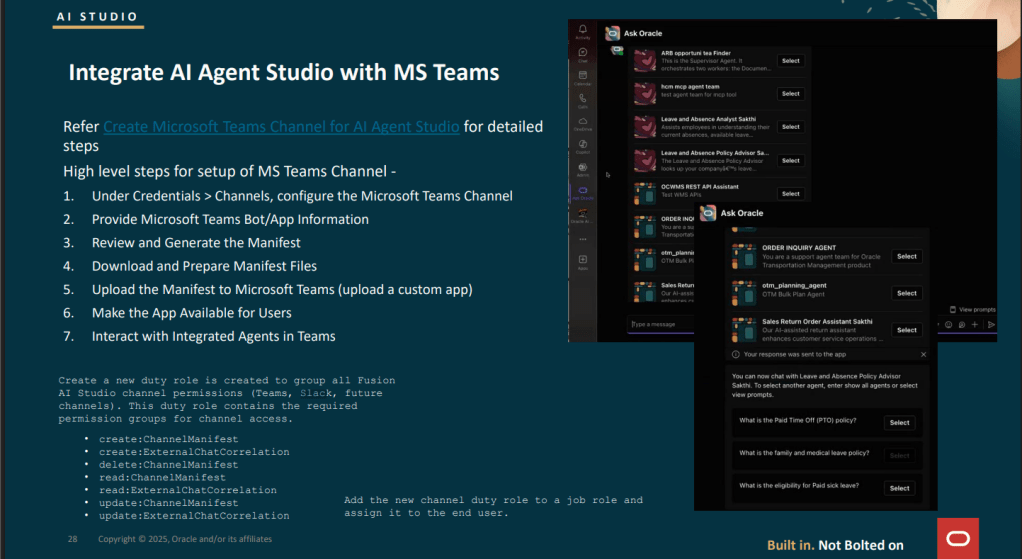
The 26A release also introduced native channel integrations for both Microsoft Teams and Slack, and I expect these to become the primary way many organisations interact with AI agents, rather than relying on the embedded Fusion chat widget. At a high level, the Microsoft Teams setup involves configuring the channel under Credentials, supplying the Teams bot or app details, generating and downloading the app manifest, and then uploading it to Teams as a custom application. Once this is in place, users can discover and select available agents directly within Teams and interact with them in exactly the same way they would through the native Fusion chat experience, but in a collaboration tool they already use every day.
One final point worth calling out is that a new duty role has been introduced to group all channel‑related permissions for both Microsoft Teams and Slack. This role includes permissions such as ChannelManifest and ExternalChatCorrelation, and it is required for any user who needs to configure channel integrations or interact with agents through Teams or Slack. As with any new security object, it is worth factoring this into your role review and security planning early, so it does not become a blocker when 26A goes live in your environment.
This blog is the second in a series of four exploring the latest capabilities in Oracle AI Agent Studio introduced in 26A. In this part, I’ve focused on how Workflow Agents are triggered and how those triggers shape real‑world usage, from event‑driven integrations through to scheduled and collaborative interactions. In the next post, I’ll move on to another key area of the platform, building on these foundations and looking at how the newer features work together to support robust, production‑ready agent solutions.
Please note all screenshots are the property of Oracle and are used according to their Copyright Guidelines

 K8 Mead
One thought on “Going Deeper with Oracle AI Agent Studio: Connecting, Triggering, and Building with Confidence – Part 2”