
In the first two blogs, I looked at how AI Agent Studio connects to the wider enterprise landscape and how agents are triggered and engaged, whether by systems, schedules or users. In this third part, I want to step back slightly and focus on what happens inside the agent itself, specifically how workflows are structured, how context is managed, and how you start designing for reliability rather than experimentation. This is the point where agent design shifts from “can we make it work?” to “can we trust it to run consistently in production?”, and the 26A capabilities give you far more control here than many people realise. To check out the previous blog, please click here.
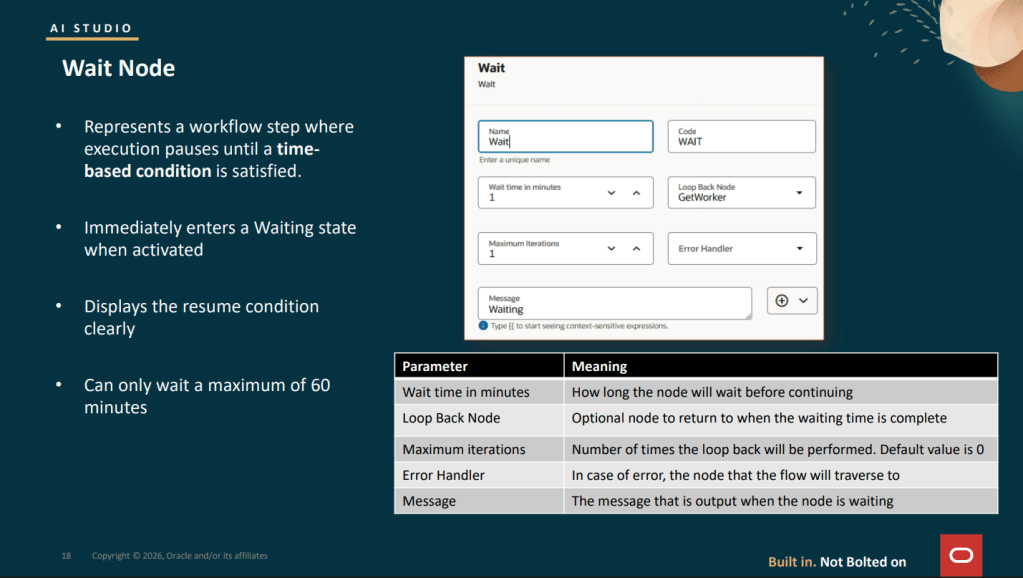
The Wait node, which is being introduced as part of the 26B release, addresses a long‑standing gap in workflow design, where there was no clean way for a workflow to pause and resume later without either completing immediately or blocking indefinitely. When a Wait node is reached, the workflow moves straight into a Waiting state and pauses execution for a configured period of time, up to a maximum of 60 minutes. Once that wait period expires, the workflow can optionally loop back to an earlier point before continuing, allowing it to re‑evaluate conditions or check for updates. This looping behaviour is controlled through two simple settings: the Loop Back Node, which defines where execution returns to, and Maximum Iterations, which limits how many times the workflow can loop before it continues forward regardless.
In practice, this enables a clean polling pattern that is otherwise difficult to model. For example, imagine a workflow that creates a receipt request in Fusion and then needs to confirm that the receipt has been posted before it can move on. By using a Wait node configured for five minutes and looping back to a Business Object read node up to ten times, the workflow effectively gives itself a 50‑minute window to detect the receipt posting automatically before either continuing or escalating. During each wait cycle, the node outputs ORA_USER_INPUT_REQUIRED, and once all iterations are exhausted it returns WAIT_TIME_EXPIRED_AND_MAX_ITERATIONS_REACHED, both of which can be evaluated in downstream If Condition nodes to route the flow appropriately.
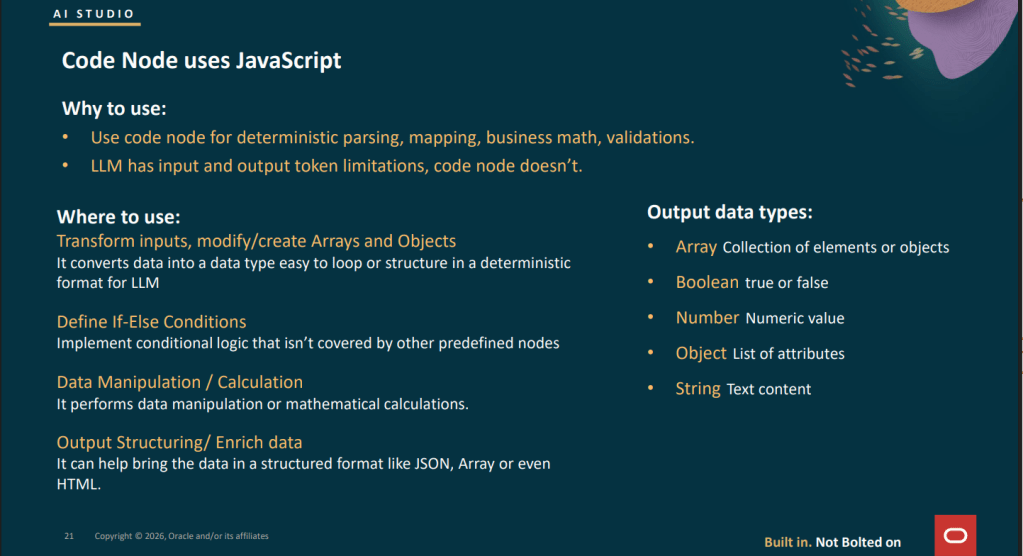
The Code node is one of the most powerful building blocks in a Workflow Agent, and also one of the most commonly underestimated. It executes JavaScript and returns a single value, whether that is an array, boolean, number, object or string. Its real value lies in handling the deterministic work that you should never push into an LLM node, such as data normalisation, threshold calculations, schema validation, array filtering and payload shaping. Used well, it provides a clean separation between predictable logic and probabilistic reasoning, which is a key ingredient in building workflows that behave consistently and are easier to trust in production.
There are a few important constraints to be aware of when designing logic for the Code node. Execution is limited to five seconds, with an upper limit of 100,000 statement executions, and functions cannot be defined within the code, which means recursion is not supported. Most built‑in JavaScript methods are available, but there is no external access, so no REST calls, file system operations, console logging or library imports. The code can read from $context, $currentItem and $currentItemIndex, but it cannot modify the $context object directly. Instead, it simply returns a value, and that returned output is the sole result of the node.
Some of the most effective patterns I’ve seen make particularly good use of the Code node for this kind of deterministic work. Common examples include normalising inconsistent date strings and currency values into canonical formats before passing them to a Business Object write node, or calculating variance percentages for three‑way match validation so that an If Condition node receives a simple boolean rather than needing to express complex arithmetic. Other strong patterns include generating idempotency keys using a combination of $context.$workflow.$traceId and object identifiers to prevent duplicate writes during retries, and filtering arrays returned from Business Object reads so that only active or primary records are passed into a For Loop for further processing.
For workflows that are triggered through the AI chat interface, 26A also introduced support for file uploads during conversations with an agent, allowing users to attach up to five files with a combined size of 50 MB. A wide range of formats is supported, including PDF, DOCX, XLSX, PPTX, PNG, JPEG, HTML, Markdown, JSON, XML, CSV and ZIP. To work with these attachments inside a Workflow Agent, 26A required the delivered MultiFileProcessor tool to be added to an agent and that agent then included within the main workflow. This capability significantly expands what chat‑driven workflows can handle, particularly when dealing with documents, structured data and supporting evidence provided directly by the user. In 26B, this has been simplified significantly. Rather than introducing a separate agent, you can now add a Tool node directly into your Workflow Agent and select Chat Attachments Reader as the tool type. This keeps the workflow much cleaner and removes an unnecessary orchestration step. The tool reads the files uploaded in the current chat session and exposes the extracted content directly to downstream nodes, making it easier to act on user‑provided documents without additional plumbing or indirection.
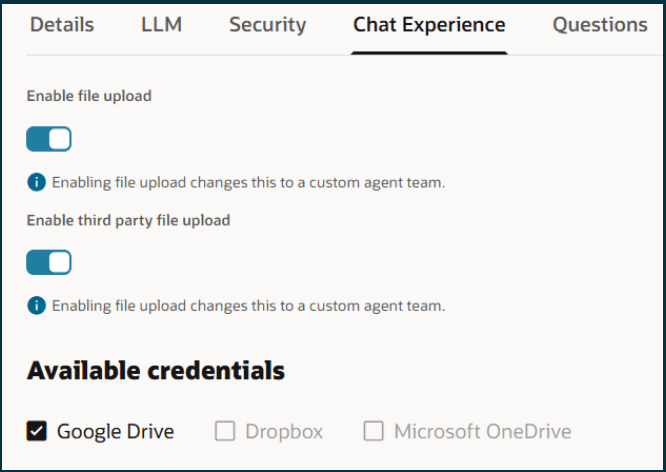
Support is also in place for third‑party file storage, allowing users to upload files directly from Google Drive, Dropbox or Microsoft OneDrive, provided those credentials are configured under the Chat Experience tab in Credentials. Enabling this involves registering an OAuth application with the relevant provider, obtaining the client credentials, configuring the account in Credentials, and then switching on the option to allow users to upload files from connected cloud storage accounts on the agent’s Chat Experience tab. Once configured, this gives users a seamless way to bring external documents into agent‑driven workflows without needing to download and re‑upload files manually.
This third blog has focused on what really makes Workflow Agents robust in practice, from pausing and polling patterns, through deterministic logic in Code nodes, to handling documents and attachments cleanly inside workflows. These are the building blocks that move agents beyond experimentation and into something you can rely on day to day. In the final post in this four‑part series, I’ll bring everything together and look at the remaining 26A and 26B capabilities that round out the platform, focusing on how they support governance, scale and long‑term operational confidence when running AI agents in production.
Please note all screenshots are the property of Oracle and are used according to their Copyright Guidelines

 K8 Mead
One thought on “Going Deeper with Oracle AI Agent Studio: Connecting, Triggering, and Building with Confidence – Part 3”